All SketchJoy coloring pages are free PDFs. Each one is 300 DPI, sized to fit both US Letter (8.5 × 11 in) and A4 paper. You can print from a computer, phone, tablet, or Chromebook.
This guide walks you through the full process and covers fixes for common problems.
Before You Print
About our files: Every SketchJoy PDF is black-and-white line art with clean edges. We set them at 300 DPI so lines stay sharp on any home or school printer. File sizes are small (usually under 3MB), so they download fast even on slower connections.
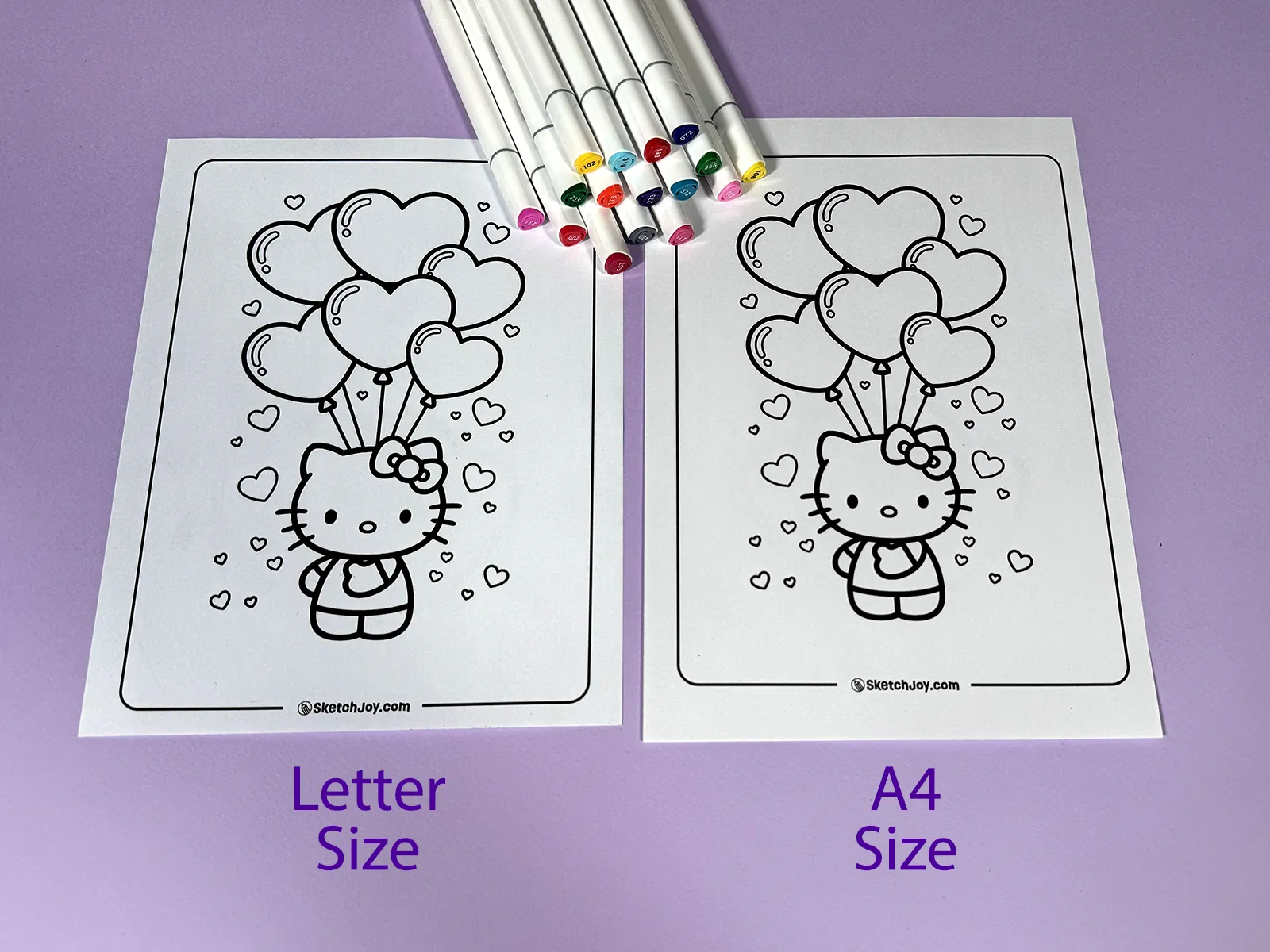
Our pages print on both Letter and A4 without cutting or resizing. The design sits inside safe margins, so nothing gets cropped.
How to Download a Coloring Page
On any SketchJoy coloring page, tap or click the “Download PDF” button below the image you want.
What happens next depends on your device:
- On most computers, the PDF opens in a new browser tab. You can print from there, or right-click and choose “Save As” to keep the file.
- On phones and tablets, the file usually saves to your Downloads folder. Some browsers show a preview first.
- On Chromebooks, the file goes to the Files app under Downloads.
Tip:If the PDF opens inside your browser instead of downloading, look for a small download arrow icon (↓) in the top-right corner of the viewer. Click that to save the file.
How to Print From a Computer
Windows:
- Open the PDF. Adobe Reader, Edge, or Chrome all work.
- Press Ctrl + P.
- Pick your printer.
- Set paper size to Letter or A4 (match what’s in your printer).
- Set scaling to Fit to Page or Shrink to Fit.
- Orientation: Portrait.
- Hit Print.
Mac:
- Open the PDF in Preview or your browser.
- Press Command + P.
- Pick your printer.
- Under “Paper Size,” choose US Letter or A4.
- Under “Scale,” select Scale to Fit.
- Hit Print.
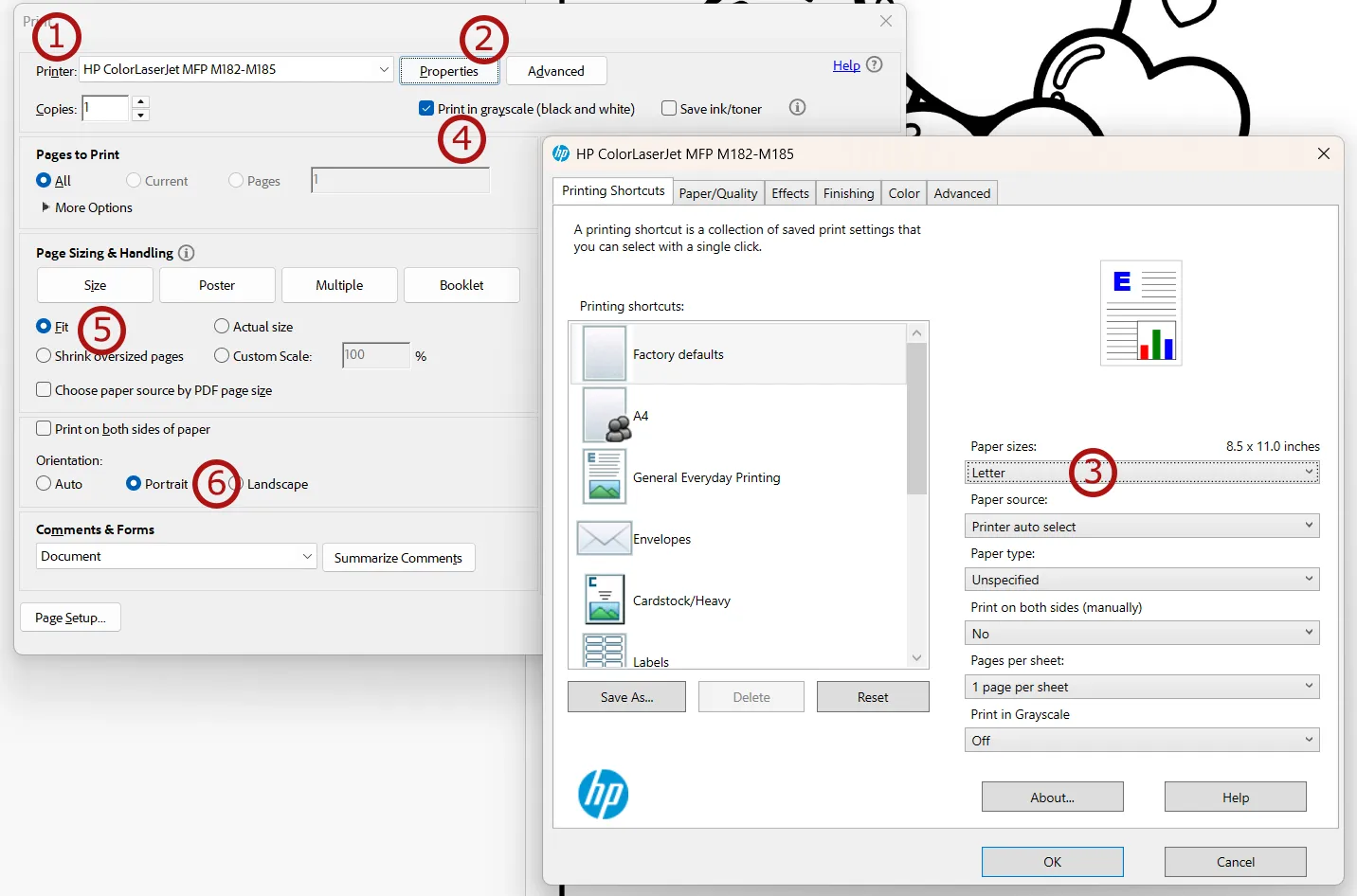
For sharper lines:In your print settings, look for “Quality” or “Print Quality” and set it to Best or High. The default Normal mode works fine, but Best gives you noticeably crisper outlines.
How to Print From a Phone or Tablet
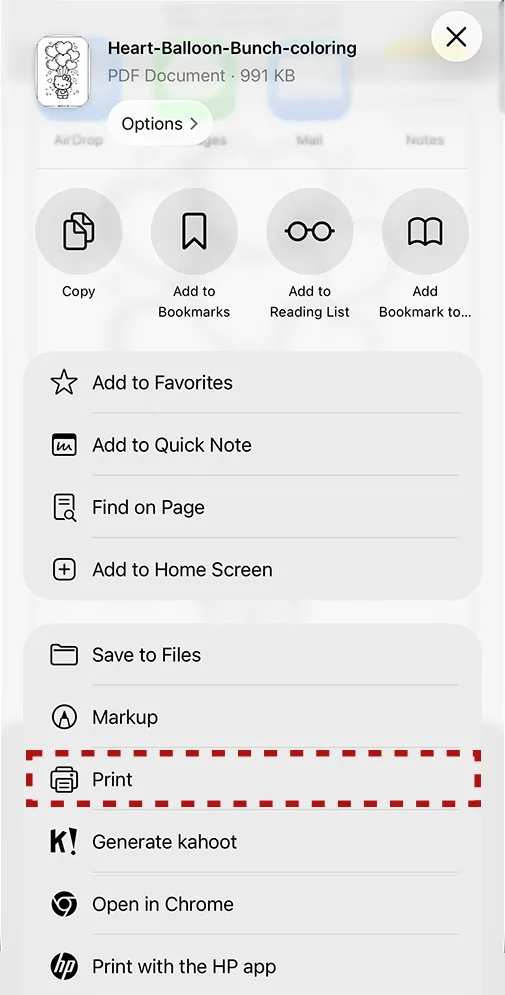
iPhone / iPad:
- Open the downloaded PDF from Files or your browser.
- Tap the Share icon (square with an arrow).
- Tap Print.
- Choose your AirPrint printer.
- Set copies and paper size.
- Tap Print.
Android:
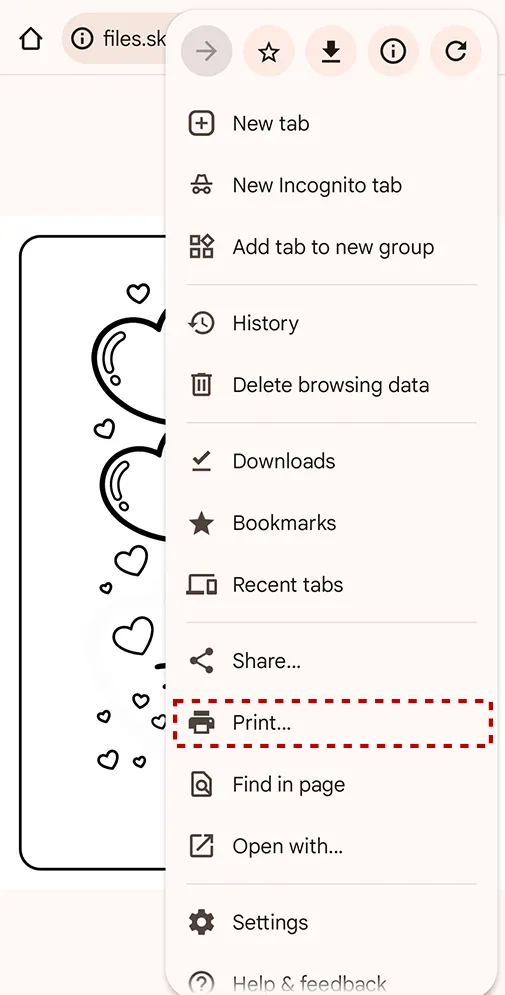
- Open the PDF from your Downloads folder or browser.
- Tap the three dots menu (⋮) or the Share button.
- Tap Print.
- Select your printer. Make sure your phone and printer are on the same Wi-Fi network.
- Set paper size and copies.
- Tap the Print button.
No wireless printer? Transfer the file to a computer using email, Google Drive, AirDrop, or a USB cable. Then print from there.
How to Print From a Chromebook
- Open the PDF from the Files app.
- Press Ctrl + P.
- Choose your printer. Chromebooks work with most Wi-Fi and USB printers.
- Set paper size to Letter or A4.
- Set scaling to Fit to printable area.
- Click Print.
If your school Chromebook doesn’t show a printer, ask your teacher or IT admin. Some school networks require connecting through a managed print service.
Inkjet vs. Laser: Which Printer Works Better?
Both work. But they behave differently with coloring tools.
Inkjet printers spray wet ink onto the paper. The ink can smear if you color over it too soon with pencils or markers. If you use an inkjet, let the printed page sit for a few hours before coloring. Overnight is even better.
Laser printers use heat to fuse dry toner onto the page. Lines won’t smear, even if you start coloring right away. Laser prints also tend to look a little sharper. If you print a lot of pages, a laser printer is cheaper per page over time.
School tip:Most school and library printers are laser. That’s actually ideal for coloring pages — sharp lines, no smearing, and they handle heavier paper well.
Print Settings Cheat Sheet
These settings work best for our pages:
| Setting | What to choose |
| Paper size | Letter (8.5 × 11”) or A4 |
| Orientation | Portrait |
| Color | Black & White (saves ink) |
| Quality | Best / High |
| Scaling | Fit to Page |
| Margins | Default / Normal |
| Pages | All (or select specific ones) |
| Duplex (2-sided) | Off |
Turn off two-sided printing. Coloring on the back of another page causes problems. Markers bleed through, and pencil pressure leaves marks.
Printing for Classrooms and Groups
If you’re a teacher or running a group activity, here are a few things that save time.
Print in batches. Download all the pages you need first, then print them together. Most PDF viewers let you print multiple files at once.
Use the school copier. Large copiers handle thick paper better than desktop printers. Ask your office staff to load 32 lb paper in one of the trays.
Print extras. Kids sometimes want to redo a page or try different colors. Having 2–3 extra copies avoids interruptions.
Label the pages. If you’re printing from different sets, sort them into labeled folders or trays before the activity.
For teachers:All SketchJoy coloring pages are free for classroom use. Print as many copies as you need for your students. No permission request needed.
Common Problems and Fixes
The page prints with white borders or looks too small. Open print settings and change “Scale” to Fit to Page. Some PDF viewers default to “Actual Size,” which can leave wide margins.
Lines look blurry or fuzzy. Set print quality to Best or High. In Draft or Normal mode, printers use less ink, and lines come out lighter.
The page only prints half the image. Check that your paper size setting matches the paper loaded in your printer. Mismatched sizes cause cropping.
Ink smears when I color over it. You’re likely using an inkjet printer. Let the page dry for a few hours before coloring. A laser printer solves this completely.
Paper jams with thick paper. Use the rear feed tray if your printer has one. Feed one sheet at a time. In settings, select “Heavy Paper” or “Cardstock” as the paper type.
The PDF won’t open. Try a different app. On phones, use Google Drive, Adobe Reader, or Apple’s Files app. On computers, Chrome, Edge, and Preview (Mac) all open PDFs without extra software.
Save Ink and Paper
Printing regularly? A few small changes cut waste and cost.
Print in black and white. Our pages are line art. You don’t need color ink. Switch to grayscale in your settings.
Use draft mode for test prints. If you’re checking layout or size, print one copy on cheap paper in draft mode. Save the good paper for the final version.
Skip the cover image. Make sure you’re printing only the PDF file, not a screenshot of the webpage.
Reuse misprints. Jammed or test pages with a blank back side work great for scrap paper or practice coloring.
Check Final Results
Our illustrator team designs each page with print quality in mind. Lines are thick enough to stay visible on any printer, and shapes leave plenty of room for coloring inside the borders. We print each page, verify the final results, and confirm their size after printing. You can find out how the printed pages look on A4 and Letter size papers in this image:
For questions about printing or file issues, visit our Contact Us page.